Skip to content

Features

Everything Auton does

The Assistant runs your coding agents for you. The workspace lets you drive them yourself. See pricing

Pro · free during the beta

The Assistant

Your agents work for you. More accounts, no stops at usage limits, and Tasks that plan, build, check and report.

Tasks

Give it a goal, get a report.

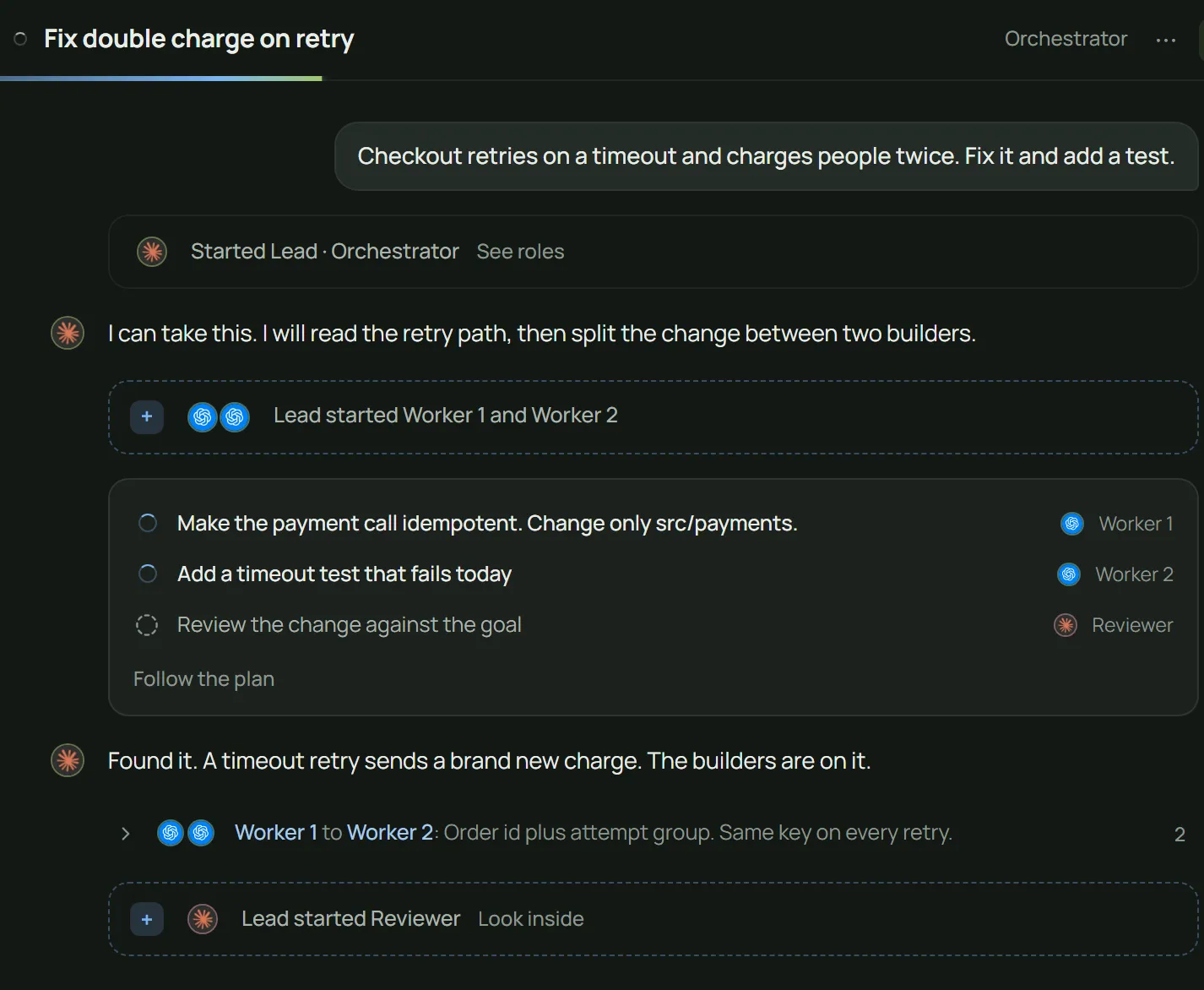
Describe the work in a sentence. The lead agent plans it, hands the parts to helper agents and keeps you posted.

  • Pick an approach: one agent, a lead with helpers, or build then review
  • See each step and which agent has it
  • Step in at any time, or stop the Task
A Task in progress: the lead agent has split the goal into steps and two helpers are working.
A lead agent planning and handing out the work.

Roles

The right agent for each job.

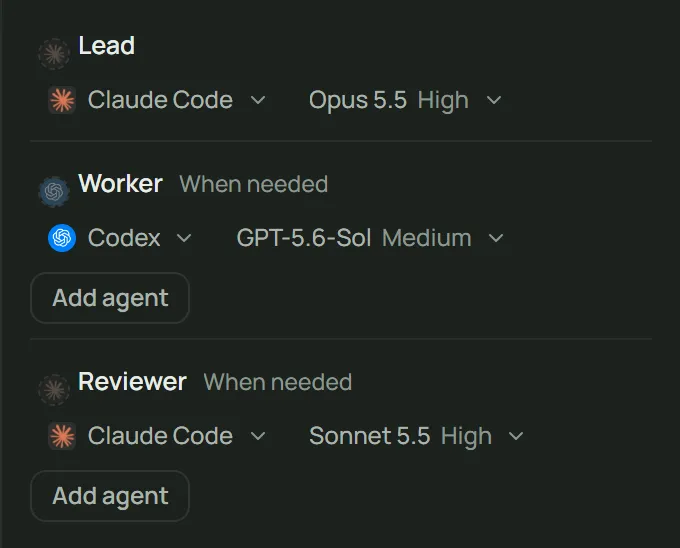
Choose the agent, model and thinking level for the lead, the builders and the reviewer before the Task starts.

  • Claude Code to lead, Codex to build, another model to review
  • Set the thinking level per role
  • Give a helper role up to four agents
Task roles with an agent, model and thinking level chosen for each role.
Each role gets its own agent, model and thinking level.

Rounds

Rounds that end in a report.

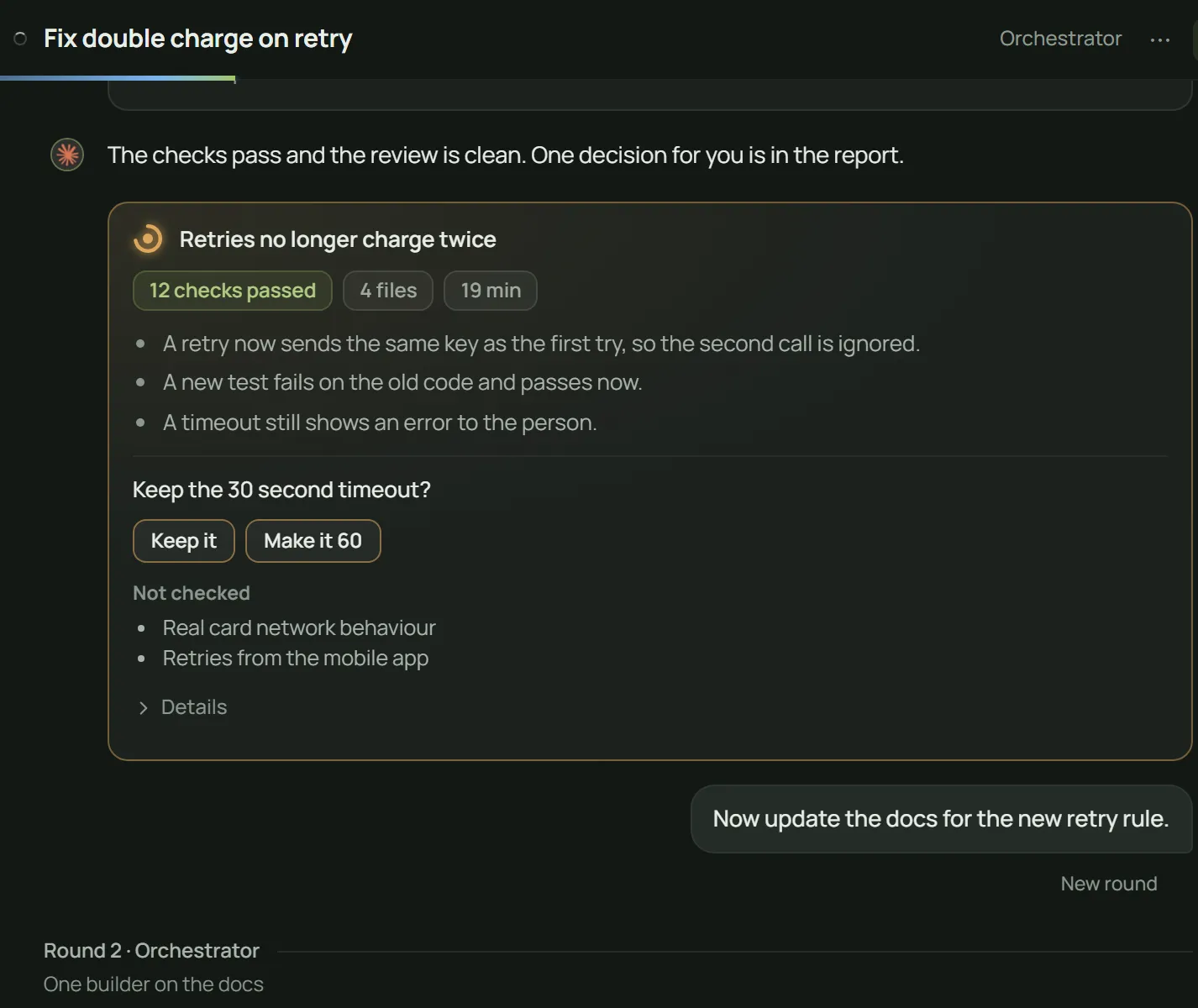
Work happens in rounds. Each round ends with a short report: what changed, what was checked and what is left.

  • Answer the lead’s questions in one click
  • Every report stays in the Task
  • See which agents worked on each round
A Task in its second round, with the first round’s report and one question for you.
Each round ends with a report you can answer.

Compare

Same task, two agents. Pick blind.

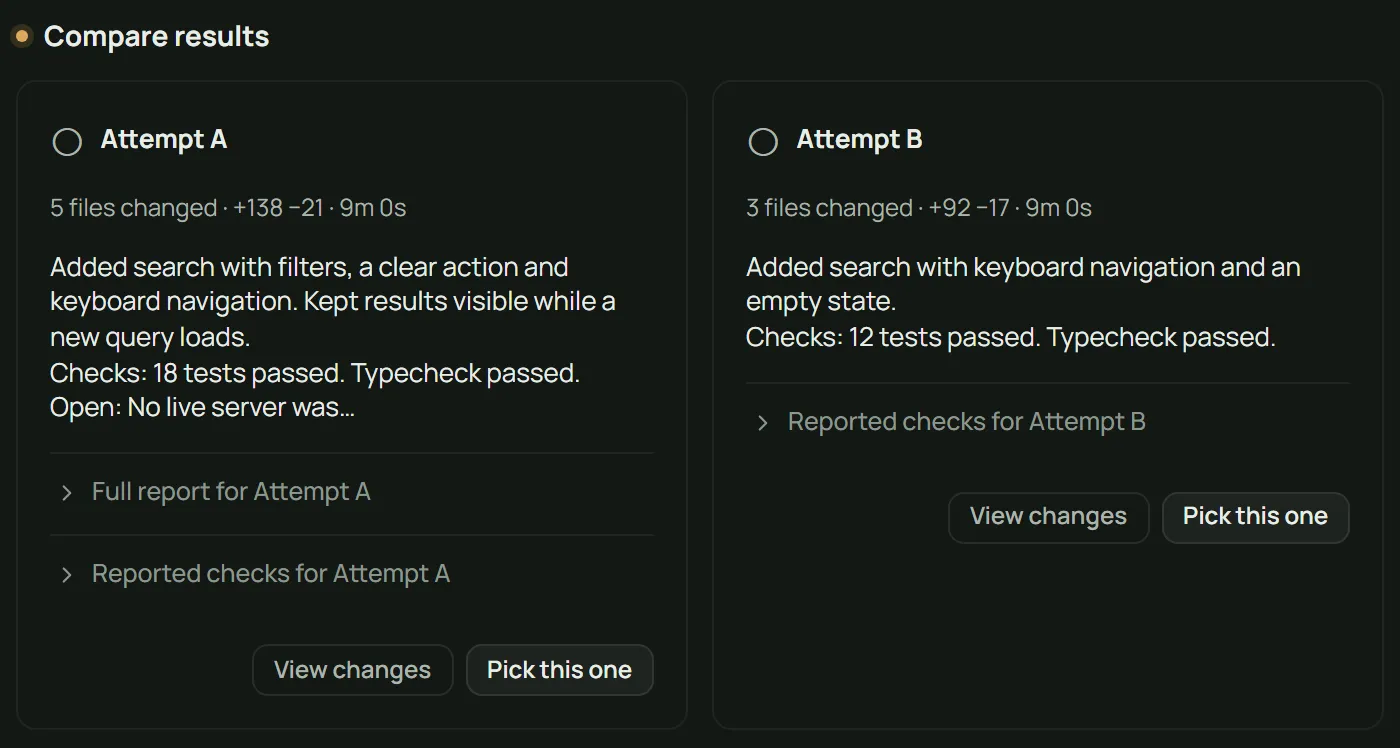
Two or more agents build the same request, each in its own folder. You compare the results without knowing who made which, then keep the winner.

  • Results are labelled A and B until you pick
  • See each result’s changes and the checks it reports
  • Keep the winner, discard the rest
Two results labelled A and B side by side, waiting for a blind pick.
Results stay anonymous until you pick.

Auto continue

Usage limit? It carries on.

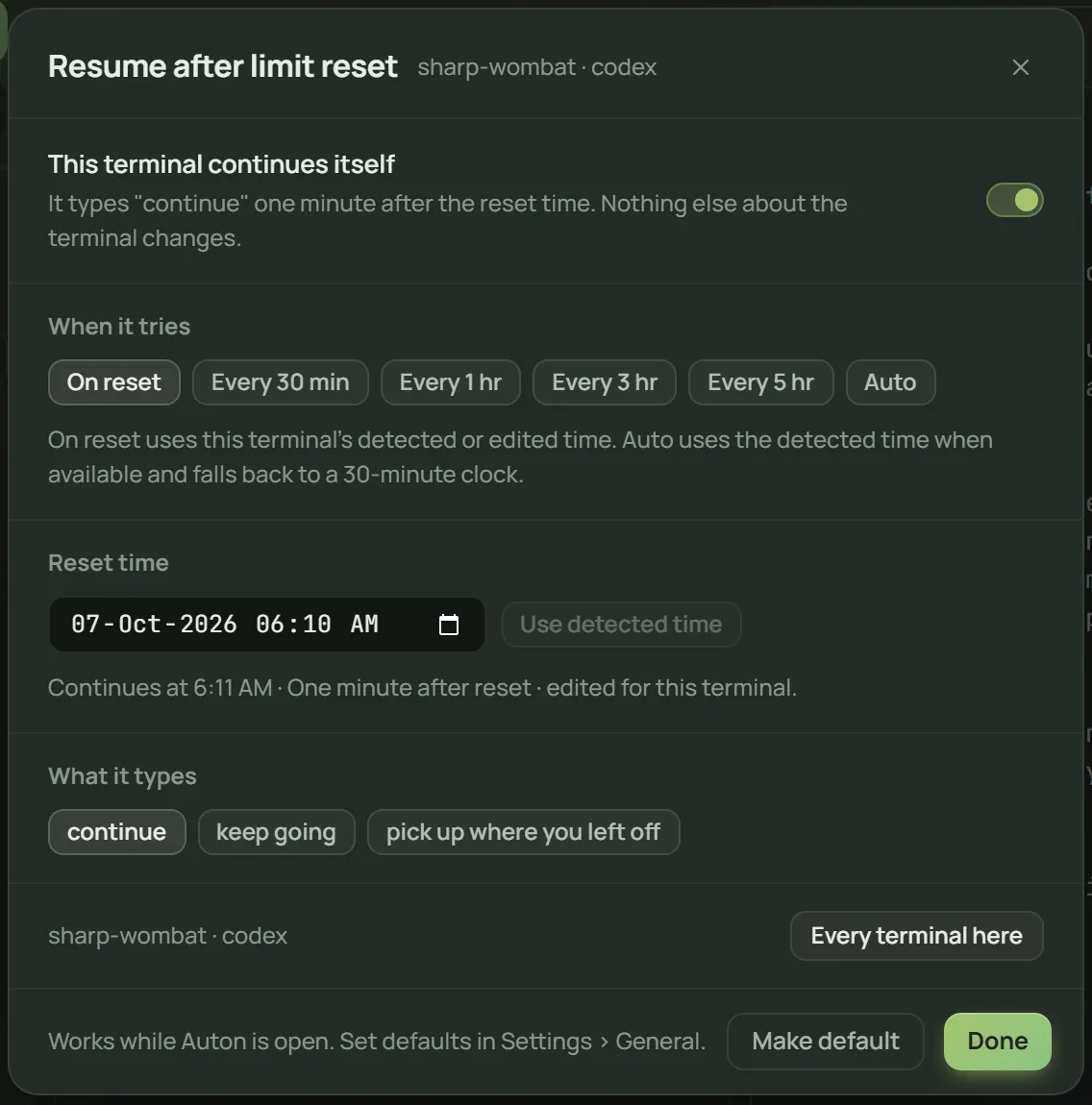
When an agent hits its usage limit, Auton waits for the reset and tells it to continue. Leave it running overnight.

  • Turn it on per agent
  • See when the limit resets
  • Cancel any time
One terminal set to type continue one minute after its usage limit resets.
Auton continues the work when the limit resets.

Accounts

Choose the account for each agent.

Sign in to more than one account for Claude Code, Codex CLI and pi, and choose which one each agent uses.

  • Keep work and personal accounts apart
  • Pick another account when one runs low
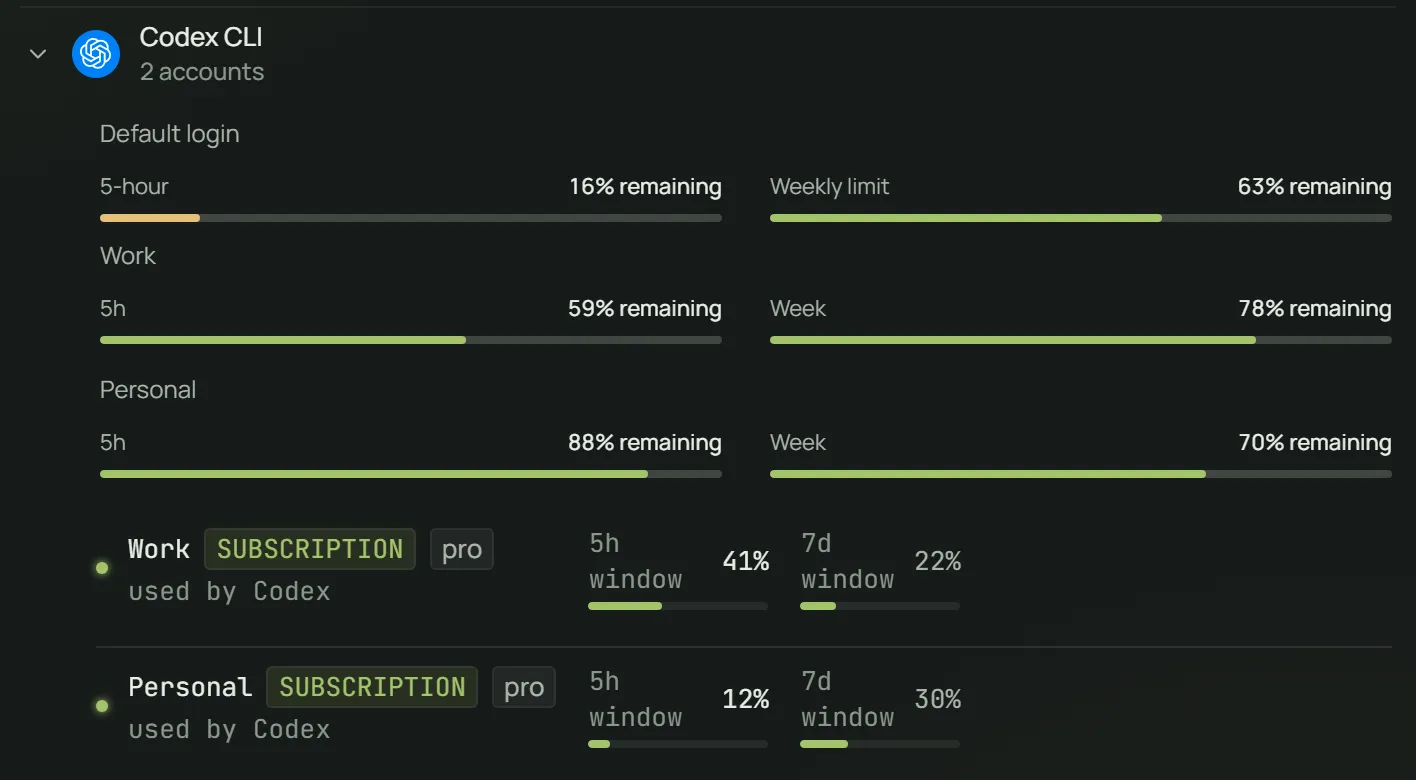
  • See usage for each account
Two Codex CLI accounts, Work and Personal, on the Accounts page, with the usage left on each.
Two Codex CLI accounts, each with its own usage.

Lite · free forever

The workspace

You drive your agents. One calm window, and every session comes back where you left it.

Side by side

All your agents in one window.

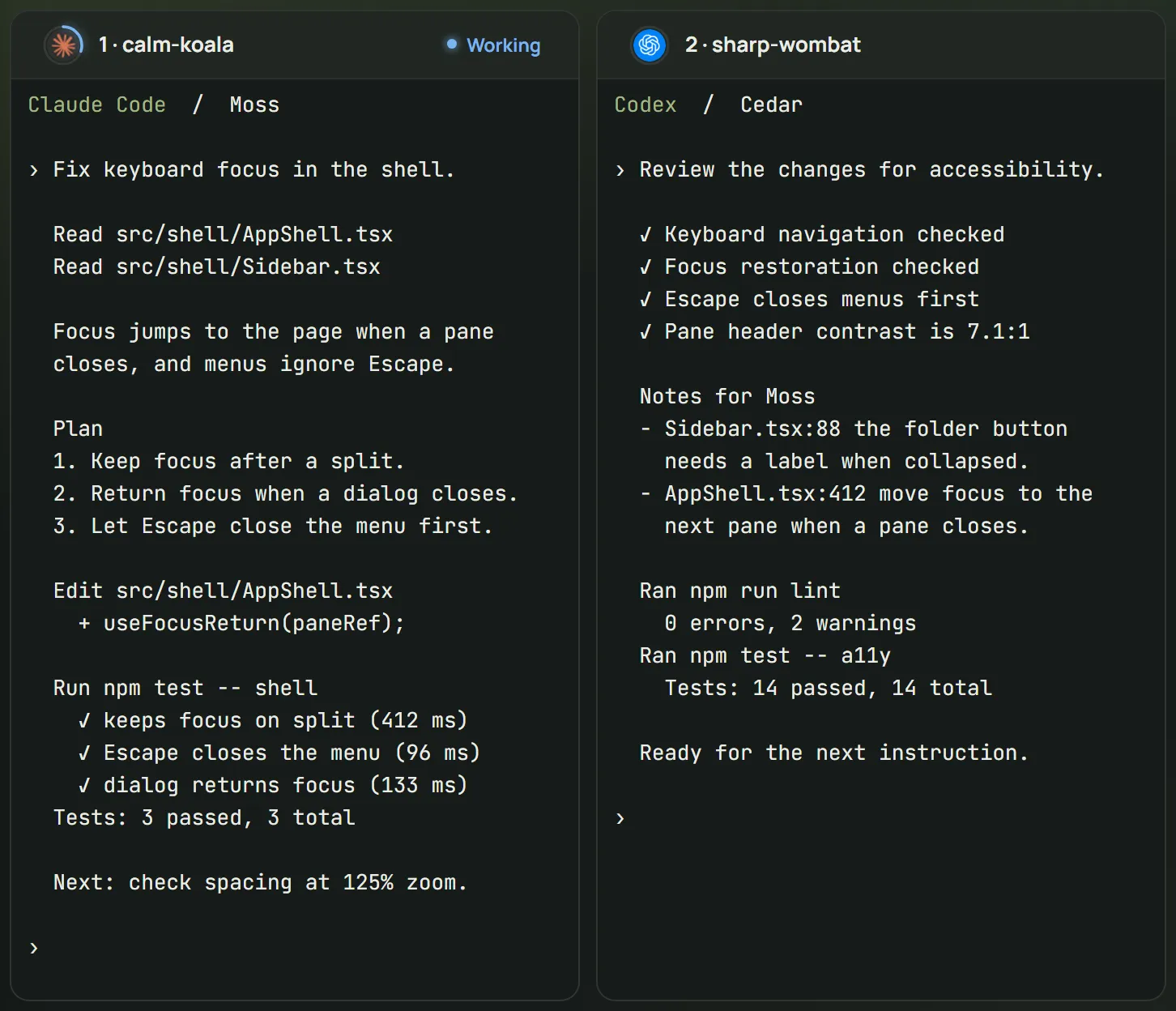
Run Claude Code, Codex and others in panes next to each other. Close Auton and come back tomorrow: every session opens where you left it.

  • Start several agents at once
  • Sessions and panes resume where they stopped
  • A quiet mark shows who is working and who needs you
Two agent panes side by side in the Auton workspace, Claude Code on the left and Codex CLI on the right.
Claude Code and Codex CLI working side by side.

Agents

Seven coding agents built in.

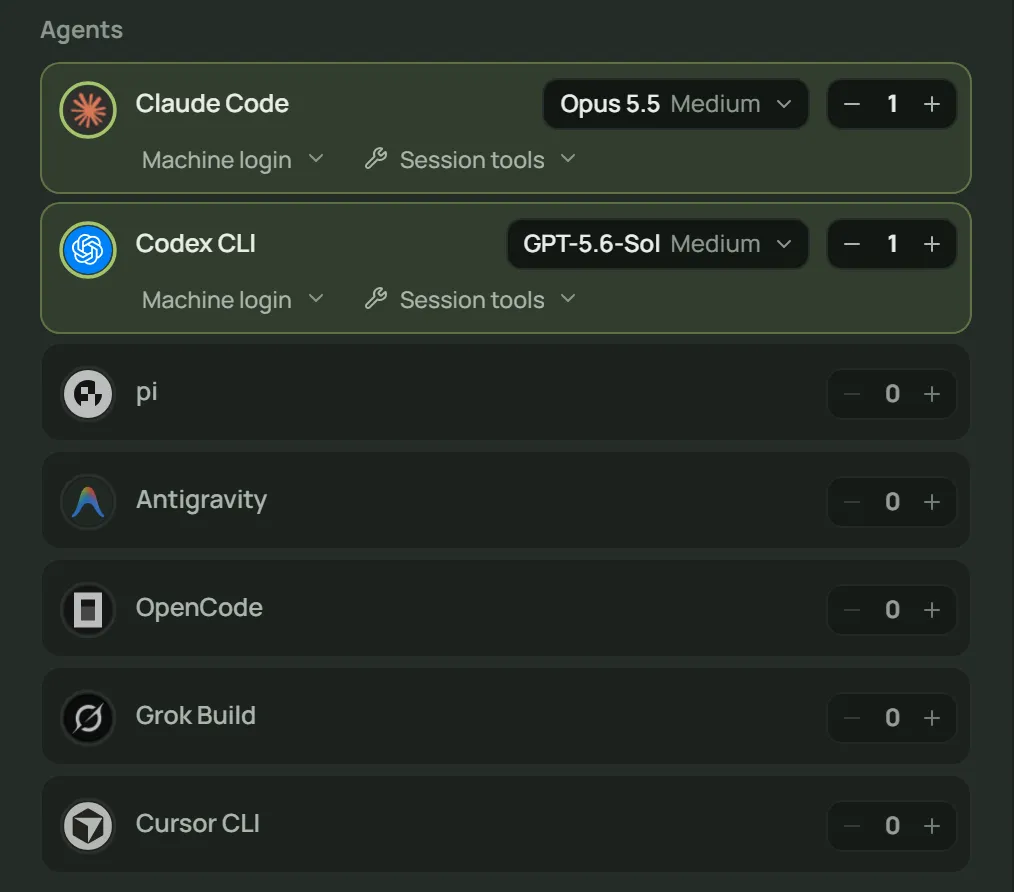
Claude Code, Codex CLI, Cursor CLI, OpenCode, Grok Build, pi and Antigravity CLI, each with your own account.

  • Auton adds no AI credits; you use your own plan
  • Any other CLI runs in a regular terminal pane
  • Pick the model and thinking level when you start
The seven built-in coding agents in the New session dialog, with Claude Code and Codex CLI picked.
Start any of the seven built-in agents.

Review

The agent writes. You review.

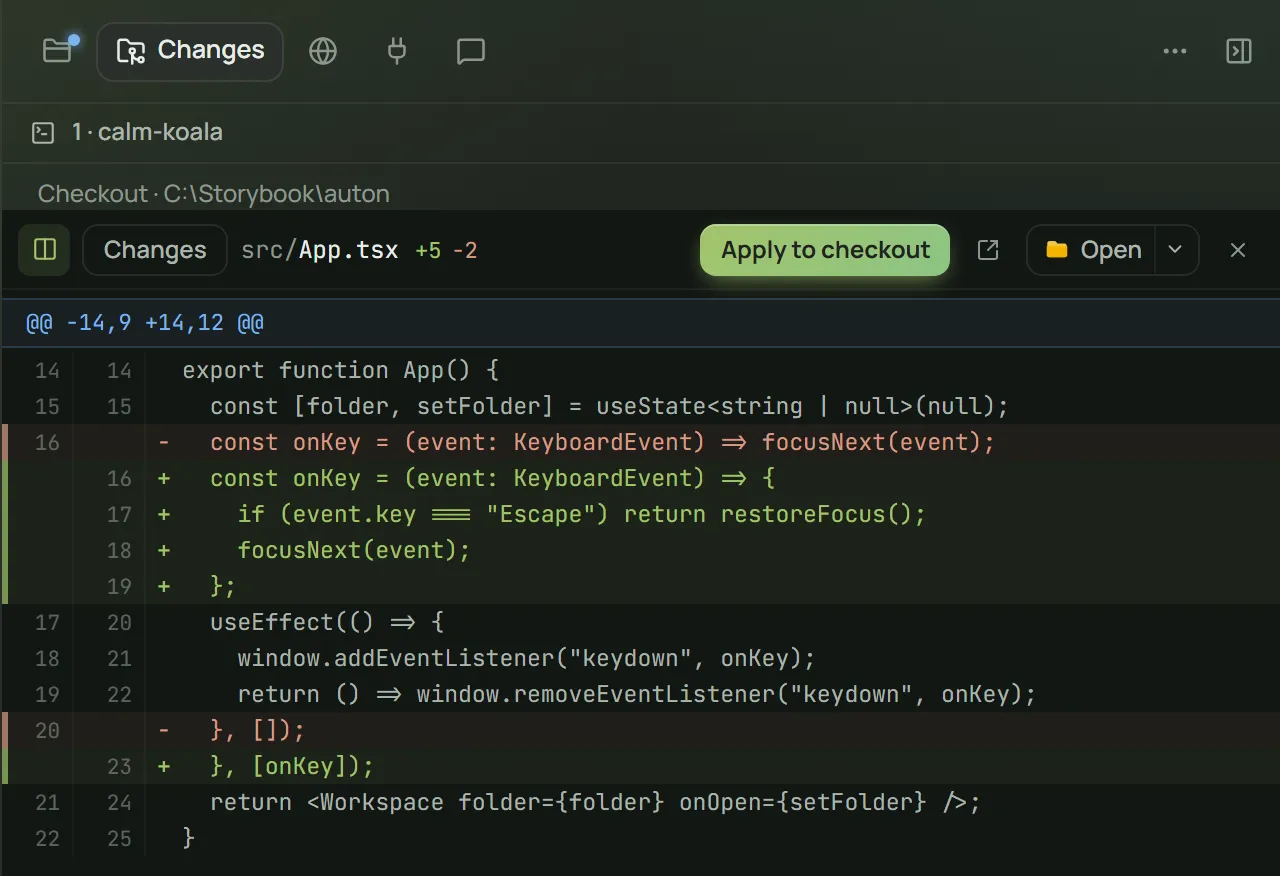
See exactly what changed, file by file. Apply it, keep it on a branch, or discard it.

  • Diffs for every file an agent touched
  • Apply or discard each agent’s work
  • Work from a worktree lands only when you apply it
The diff of one file an agent changed, with the button to apply it to your checkout.
Every change, file by file, before it lands.

Branches

Each run on its own branch.

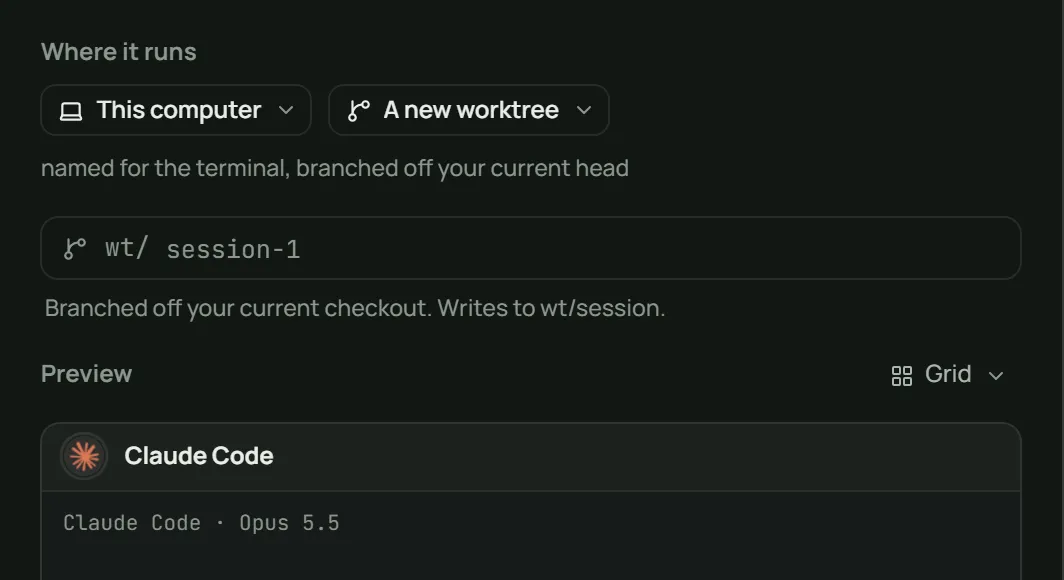
Start an agent in its own worktree so it never touches your working copy. Keep the branch you like.

  • Separate folders, no clashes
  • Keep a worktree’s work as a branch
  • Clean up the rest
The New session dialog set to start the agent in a new worktree.
Start agents in a new worktree.

Tools

Set up tools once, for every agent.

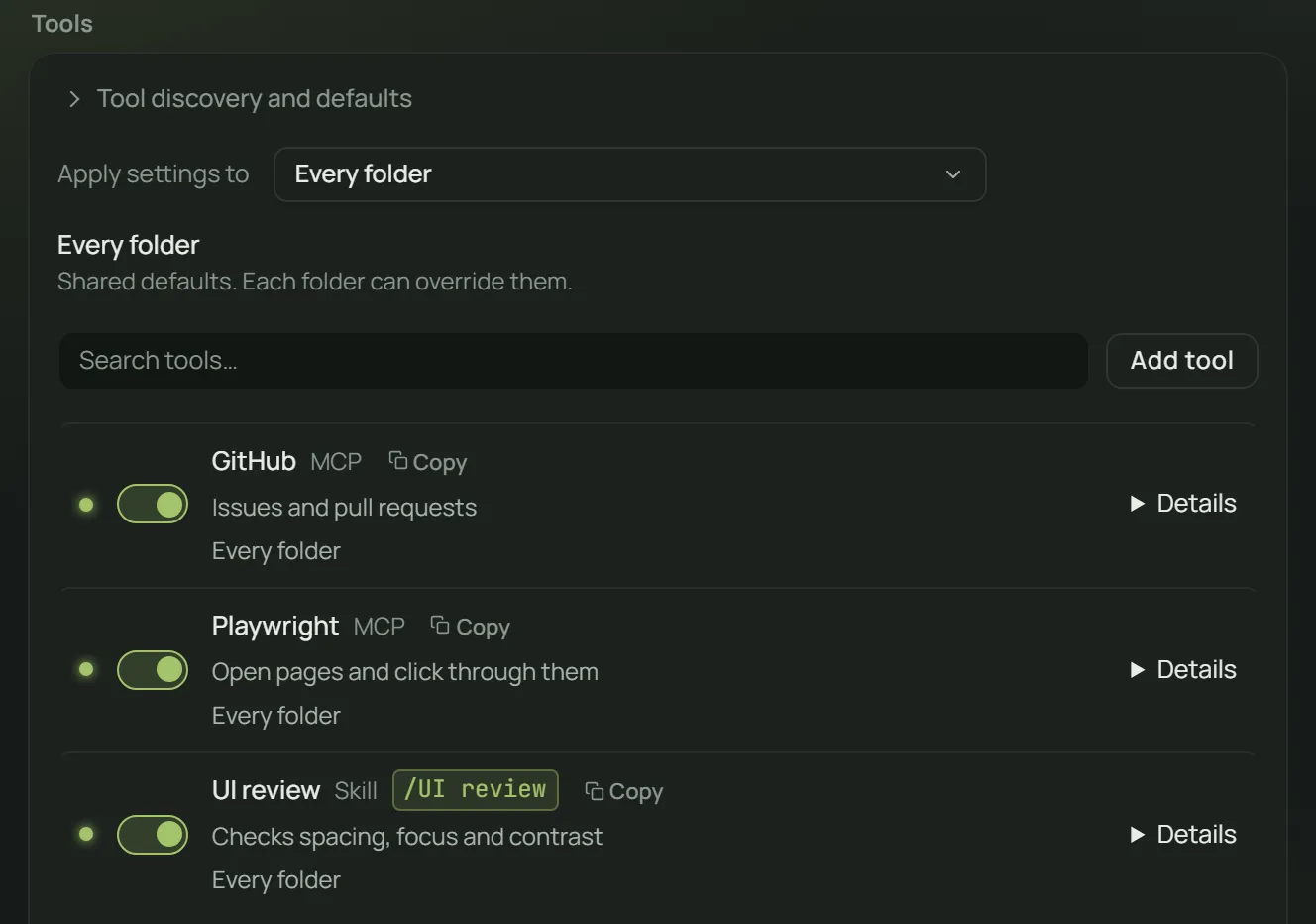
Add MCP servers and skills once in Auton and every agent can use them, in every folder or just one.

  • Shared defaults for every folder
  • Turn a tool on or off for one folder
  • Works with the MCP servers you already use
Tools settings listing MCP servers and skills with on and off switches.
MCP servers and skills, set up once.

Browser

Agents can see your app.

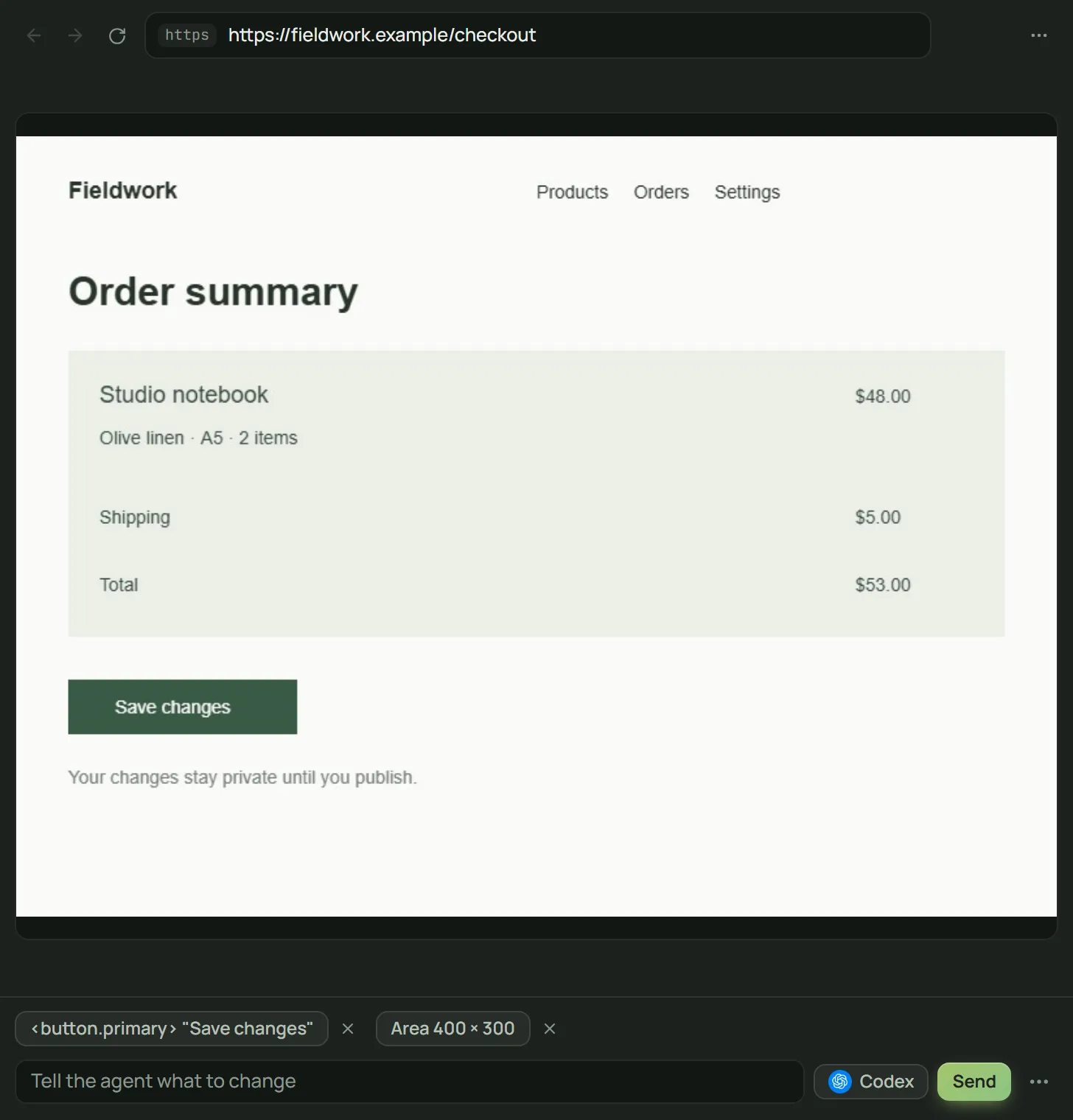
A browser inside Auton lets agents open your app and check their work. Point at something on the page and send it to the agent.

  • Agents open pages and read what is there
  • Pick an element and send it with a note
  • Runs on your PC
The built-in browser showing a web app with an element picked to send to the agent.
Point at what to fix and send it to the agent.

Usage

Your usage, always in view.

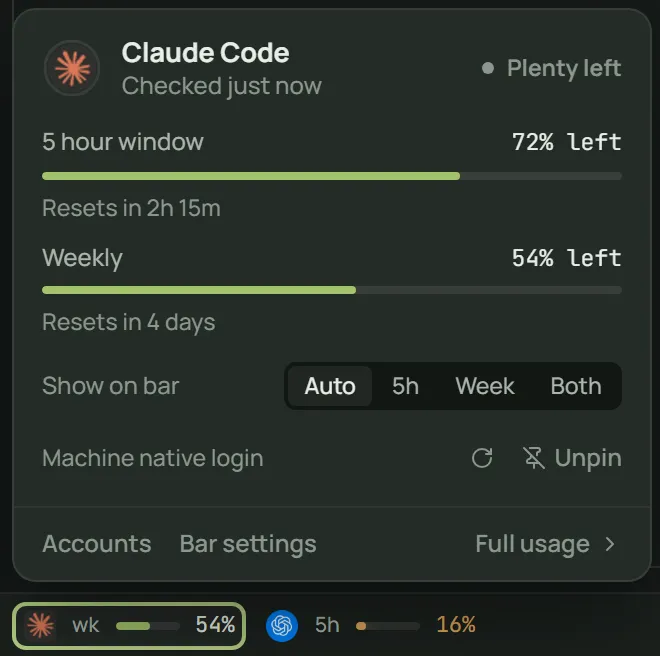
Each account’s 5-hour and weekly usage stays in view while you work, so you see a limit coming before it stops you.

  • Usage per agent and per account
  • A warning before you run out
  • Tokens used per day over time
The usage card for Claude Code with its 5-hour and weekly limits and when they reset.
Usage for each agent and account.

Themes

Make it yours.

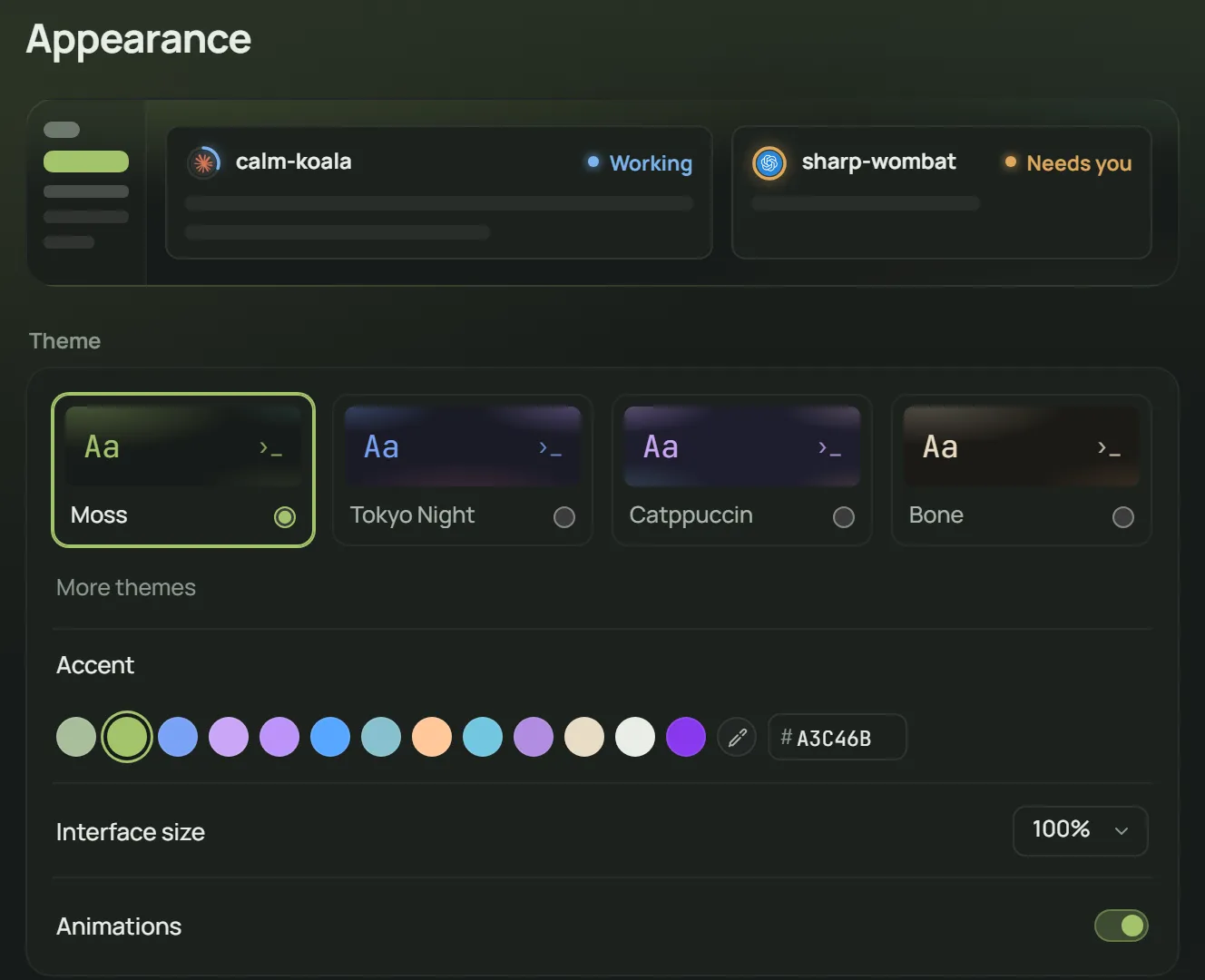
Choose a theme, colors and a terminal font. Light and dark.

  • Several themes, light and dark
  • Your terminal font
  • Accent colors and backdrops
Appearance settings with theme choices and accent colors.
Themes, colors and terminal fonts.

Bring your next project.

Download Auton and sign in when you first open the app.